

Apple AirPods are the most recognizable wireless earbuds on the market. They account for almost 30% of the total world market of wireless earbuds. So, it’s no surprise you see them everywhere.
AirPods are well-built, ergonomically designed, have excellent battery life, intuitive features, and fantastic sound quality. That being said, they are not perfect and have a list of issues.
One of these is related to the volume…
Or, more specifically, the lack thereof. Users have complained that AirPods are not loud enough, lose their output capacity over time, and suddenly go a lot quieter, even in cases where the AirPods are not very old.
So, I’ve decided to take a look at some of the most common causes for this lack of volume and also some tips and tricks on how to fix the issues. So, let’s dive right in.
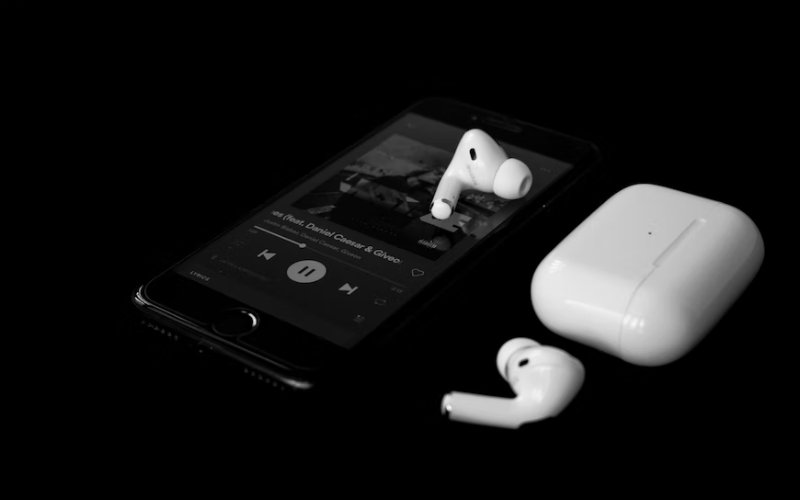
Why are My AirPods So Quiet and How to Fix Them?
The most important step in getting a problem fixed, especially when it comes to tech, is finding the cause. When your AirPods are too quiet, the reasons can vary greatly. So, you’ll have to do some testing to determine where the chink in the chain is.
There are some basic things that you can check for to find out why your AirPods are so quiet. So, let’s take a look at a few of them…
Dust or Earwax Buildup
The buildup of earwax and microscopic pieces of dirt is unavoidable. Therefore, it needs to be managed. And, when it comes to the AirPods, there are two main things you need to look at.
The inside of the ear tips…
This area is the part that goes directly into your ear. If you use your AirPods daily, then the inside walls of the tip will exhibit wax buildup. This buildup can cause enough obstruction over the speaker that the bass will begin to weaken.
Eventually, the sound will even become muffled. Of course, another byproduct of this will be a reduction in output volume.
The little opening on the backside of the “Main Bud” area…
This opening is there for a very good reason, but it does let small pieces of dust inside the bud. You’ll want to look carefully into this little hole. Sometimes, just blowing a bit will clear it out, or you can use a hair dryer but make sure it is set to low heat.
Furthermore, cleaning your AirPods regularly with a Lint Free Microfibre Cloth, 70% Isopropyl Alcohol, and Cotton Swabs will prevent the buildup of wax and dust.
Low Power Mode is Activated
This feature is intended to maximize performance and minimize power use when you’re in a tight situation without your phone dying on you. Part of this feature is lowering the output volume of certain apps to conserve the battery.
Low Power Mode can affect how loud playback will be despite the volume settings in your app. If you are experiencing low output volume issues, try checking if Low Power Mode is activated. This is often the case when someone says that the volume just dropped “overnight.”
What is more likely is that the device went into Low Power Mode when you were asleep but did not deactivate it when you charged your device up again. If Low Power Mode is activated, simply place the toggle switch in the off position and see if the volume problem is fixed.
Volume Limit Settings
Volume limiters are placed on Apple and Android devices so that people with hearing problems or sensitivity can adjust the maximum level of output to a comfortable level. However, it is possible that this setting has somehow been affected and is now causing your device to have a very low volume.
Here’s how to check:
- Open the Settings app.
- Go to General.
- Open Accessibility.
- Scroll down until you reach “Volume Limit” at the bottom.
- Set the limit to where you feel most comfortable.
If you are using your AirPods with an Android device, this is less likely to happen. But, most Android devices will have this setting too. So, check your device’s manual to make sure how to navigate to the correct setting.
Your Apple Device Needs an Updated
Software updates might seem like a silly reason why your AirPods are suddenly a lot quieter. But, they can cause all kinds of issues, least among them volume issues. It is worth making sure that your source device and Airpods have the latest OS or firmware version installed.
Here’s how to check for updates:
- Open the Settings app.
- Navigate to General.
- Tap on “Software Update.”
Checking the firmware version of your AirPods:
- Navigate to Bluetooth in the Settings app.
- Under the listed devices, tap on the ‘i” next to your AirPods.
- The firmware version will be displayed along what the serial number and other information.
Low Battery
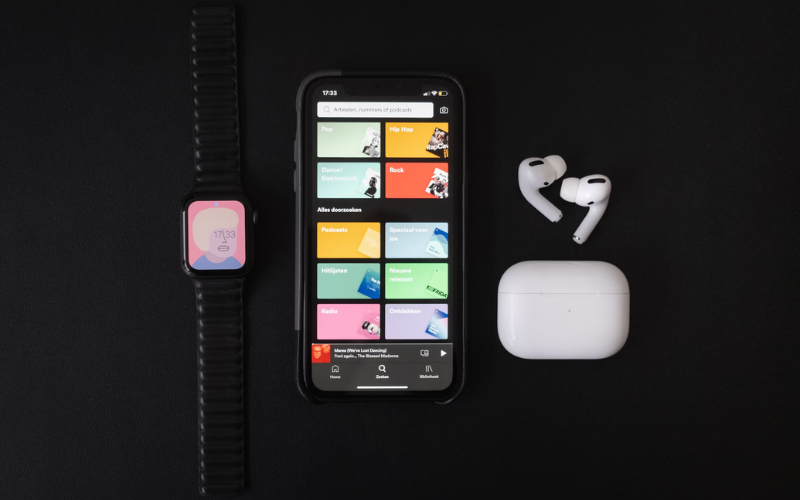
This one might seem obvious, but it’s worth checking. If your AirPods do not have enough of a charge to operate, their sound output capabilities will diminish.
Make sure that both your AirPods have some charge in them when you do your test. Also, make sure that your charging case has a bit of a charge should you need to charge the AirPods. It might also be a good time to test if the charging case and AirPods are charging properly as well.
If you notice that one AirPod’s battery is drained, but the other one still has power left, don’t panic. It’s quite normal for this to happen. Different stereo signals will engage different parts of the speakers at different times, so the output to the left and right earbuds isn’t the same all the time.
Reset the Equalizer
One of the best sound shaping tools is a good equalizer. Equalizers allow us to split up the input sound into a number of frequency bands across the spectrum. We can then boost and lower whichever frequencies we choose to shape the sound to our hearts’ (and ears’) content.
However, this affects output volume. So, if you are experiencing low AirPods output volume, then you might have to check your EQ settings.
Here’s how to check your EQ settings:
- Open the Settings app.
- Navigate to Music.
- Select “EQ “and make sure the toggle is switched to the off position.
- Compare having the EQ on and off to see if that is what’s causing your volume problem.
Bluetooth Synchronization Issues
In this era of smart devices, we must account for stupid things that can still occur. And Bluetooth is one of the best examples.
Sometimes, AirPods will have trouble with Bluetooth syncing. In some cases, users had to completely disconnect and reconnect the AirPods to fix the problem. Here are the steps you need to follow…
- With the AirPods connected and playing music, turn the volume control down to zero.
- Disconnect the AirPods from your source device, but don’t let your device forget them completely. And, don’t take them out of your ears.
- Start playing music from the speaker of your iPhone and turn the volume down to zero.
- With both volume controls at zero, reconnect your AirPods to your source device, start playing some music, and then slowly turn the volume up.
- Check to see if your problem is fixed.
May users on Apple Support forums reported that this fixed their problem. So, even if it sounds strange, it’s worth trying if nothing else so far has worked. After all, we’re trying to figure out “Why are my AirPods so quiet and how to fix them”, right?
Set Both AirPods to an Equal Volume
Sometimes, what you perceive as lower volume is just one AirPod at a much lower level than the other one. This problem can occur when AirPods are synchronized at different levels due to a glitch during Bluetooth pairing.
You might be unsure whether one AirPod is playing back at a lower level than the other. Luckily, there is an easy way to find out. All you have to do is take one of the AirPods out and put it back in. Wait until both AirPods have reconnected before moving on.
If the above step doesn’t recalibrate the AirPods, you can try lowering the volume on both and then try reconnecting them at the same time to see if this might fix the problem.
Adjusting the Volume With Siri
Siri is a virtual assistant capable of performing many tasks for you. Controlling your AirPods volume is one of them.
Sometimes, simply asking Siri to turn up the volume is all you need to give your tunes the boost they need. It also has the added benefit of being much more convenient than fiddling with volume controls.
All you have to say is, “Hey Siri, increase/decrease AirPod volume by 50%.” These voice commands will have Siri adjust the volume of both AirPods at the same time.
AirPods are Damaged

If you’re reading this part, then the news is going to be bad, well, mostly bad. Your AirPods may be damaged. And, if you know for a fact that something like heat or liquid is responsible for the damage, then it will also explain why the audio is not being played back at the correct volume.
In this case, your only option is to take the AirPods to Apple to have them replaced. Provided they are still under warranty, of course.
Need More Help with AirPods?
If so, take a look at our handy articles on How to Make Your AirPods Louder, AirPods Connected But No Sound, AirPods Blinking Orange? How to Fix It, Can I Use Two Different AirPods, and What’s The Difference Between AirPods 1 and 2 for more information.
Why are My AirPods So Quiet and How to Fix Them – Conclusion
AirPods can be quiet for several reasons, ranging from the build-up of earwax and dust to software and syncing-related issues. Other times it can be as simple as hardware damage due to liquid or heat.
Whatever the reason, you can rest assured there is always a reason for AirPods not sounding right. So, be sure to try all these tips and tricks, and your problem could well be resolved. Otherwise, it’s time to send them back to the good folks over at Apple.
Until next time, happy listening.
