

Established in 2015, Tozo has rapidly gained a reputation for making excellent value earbuds that won’t break the bank. They are compact, stylish, and deliver good sound quality. But, just like any other set of earbuds, especially those at a lower price range, they can malfunction occasionally.
One of the main issues people have with earbuds is when one side is not working. If you are experiencing this problem, don’t worry, as there are several simple fixes that you can try. In this article, we’ll guide you through Tozo earbuds, one side not working: how to fix?
That said, if there is a fundamental problem with the hardware, there’s not a lot you can do. It’s off to the service center. But that’s what we’re trying to avoid, and there’s a good chance you can do just that by following our step-by-step guide. You might just save yourself a whole load of time and money.
Check Audio Balance Settings
The first thing to try is to tweak the audio balance in your device’s settings. You’d be amazed how many times this can be the issue. If the sound balance is set to one side, it could be why one Tozo earbud isn’t working.
Adjusting the audio balance is a simple but potentially effective solution, when one of the earbuds is not working. Here’s a step-by-step guide to adjusting the audio balance on your device:
[bl]- Go to your phone’s settings. On an iPhone, go to “Settings,” and on an Android, go to “Settings” or “System settings.”
- Find the sound settings. Look for the “Sound & Vibration” or “Sound” option.
- Tap on the equalizer or audio balance option. In the sound settings, you should see an option for “Equalizer” or “Audio balance.” Tap on it.
- Adjust the balance to the center. You should see a slider or dial that allows you to adjust the balance between the left and right channels. Move the slider or dial to the center position, which is usually marked with a 0.
- Test the earbuds. After adjusting the audio balance, test the Tozo Buds to see if the issue has been resolved.
It’s important to note that the exact steps to adjust the audio balance may vary depending on your device, but the general process should be similar. If you can’t find the audio balance option, check your device’s user manual or contact the manufacturer for more information.
Un-pair and Restart Tozo Earbuds and Phone
Sometimes, simply un-pairing and restarting the earbuds and your phone can solve the problem. Temporary connection problems and minor software glitches can often magically disappear after a reboot. To do this:
[bl]- Go to your phone’s Bluetooth settings.
- Find the Tozo Buds in the list of paired devices.
- Tap on the “Forget this device” or “Un-pair” option.
- Turn off your Tozo earbuds by pressing and holding down either earbud button for three seconds.
- Next, turn off and restart your phone.
- Then, turn the earbuds back on by pressing and holding either button for five seconds.
- Wait for them to enter pairing mode and pair them once again with your device.
- Test them out with some sweet tunes.
Hopefully, whatever the little gremlin was, it’s now gone. If this fails to fix one Tozo earbud not working, don’t worry. There are still a few other fixes to try.
Update Your Tozo Earbuds
Keeping your Tozo earbuds up to date with the latest software is important to ensure they function properly and deliver optimal performance. This can be the cause of some connection issues and possibly a reason one Tozo earbud isn’t working. Here’s how you can update the software on your Tozo earbuds:
[bl]- Connect to the Tozo app: Make sure your earbuds are connected to the Tozo app on your phone. If you don’t have the app, you can download it from the App Store or Google Play Store.
- Check for updates: Once you’re in the Tozo app, navigate to the “Device Info” or “Settings” section and check for any available software updates. If there’s an update available, follow the on-screen instructions to download and install it.
- Keep your phone updated: Additionally, make sure your phone’s operating system is up to date as well. This can affect the ability of the earbuds to receive software updates.
It’s important to note that updating the software on your Tozo earbuds may take a minute or so. And it’s best to keep the earbuds charged during the update process.
Reset Your Tozo Earbuds to Factory Settings
Have you tried all the previous fixes for Tozo earbuds not working and still have trouble? Well, you should try resetting your Tozo earbuds back to their original state and pairing them again. Here’s how:
[bl]- Unpair your earbuds: Go to the Bluetooth settings on your mobile device or computer. Find your Tozo earbuds in the list of paired devices and select the “Forget” or “Disconnect” option.
- Manually turn off your earbuds.
- Reset the earbuds: Press and hold the button on both earbuds at the same time. Keep holding the button for 10 seconds or until the LED indicators flash purple three times.
- Place the earbuds in the charging case: Put the earbuds back into the charging case and leave them there for 30 seconds. They will then enter pairing mode.
- Pair your earbuds: Turn on Bluetooth on your mobile device or computer and search for your Tozo earbuds. Hopefully, they will both work successfully this time.
When you reset Tozo Earbuds, you will lose any customized settings you had previously configured. As annoying as this may be, if it fixes the problem, it’s worth the inconvenience.
Give Your Tozo Earbuds a Good Clean
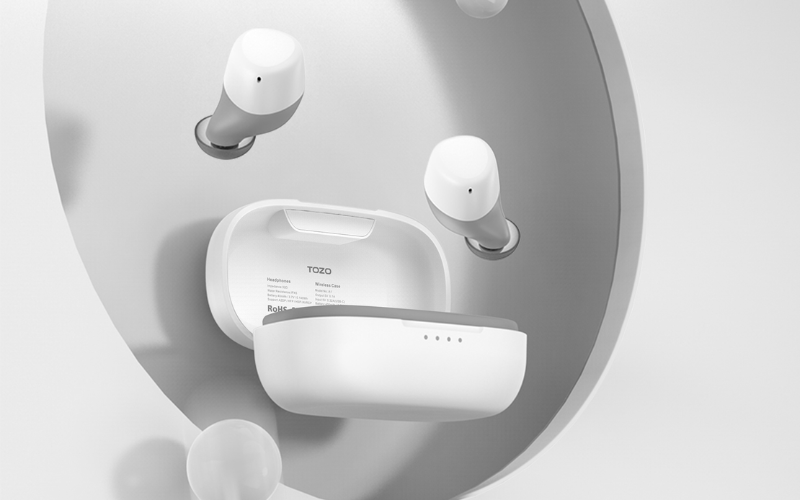
Accumulated dirt and earwax can cause problems with the earbuds. In particular, connection and charging issues. On top of that, it’s pretty disgusting. To clean your Tozo Buds:
[bl]- Make sure the earbuds are turned off.
- Using a slightly dampened Lint Free Microfibre Cloth, gently rub the whole exterior of the bud, removing any excess grime.
- Use a soft-bristled brush to clean the mesh grills of any excess wax.
- Dampen a Cotton Swab with 70% Isopropyl Alcohol and clean the charging connections in the case and on the earbuds. Excessive dirt could be stopping one of the buds from charging.
If that earbud is still refusing to perform, maybe there are charging or battery problems.
Check for Power Issues
If all previous solutions have failed, and you’re still asking, “Tozo earbuds, one side not working: how to fix?”, the issue may lie with charging or battery problems. Here are some steps you can take to diagnose and resolve these issues:
[bl]- Attempt to fully charge both earbuds.
- Check the charging case: If one earbud is still not working, try swapping them around in the charging case. If the failing earbud charges and works, it’s likely there’s an issue with the charging connection in the case.
- Check the earbud connection: If the charging connections in the case are functioning, the problem may be with the connection on the earbud or the battery itself. To check this, see if the functioning earbud charges in both ports and vice versa.
If the above steps don’t resolve the issue, it’s best to seek help from a professional. This could be a visit to a Tozo Service Center or contacting Tozo customer support for further assistance.
Tozo Earbuds, One Side Not Working: How to Fix? – Final Thoughts
One earbud not working is by far one of the most irritating Tozo earbud problems. Hopefully, by using one of our quick and easy solutions, you’ll have them working again in no time. All without the hassle of having to contact customer support.
Until next time, good luck, and happy listening.
